Import and Export Operational Data
Move supported master and operational data safely using validation, previews, and CSV exports.
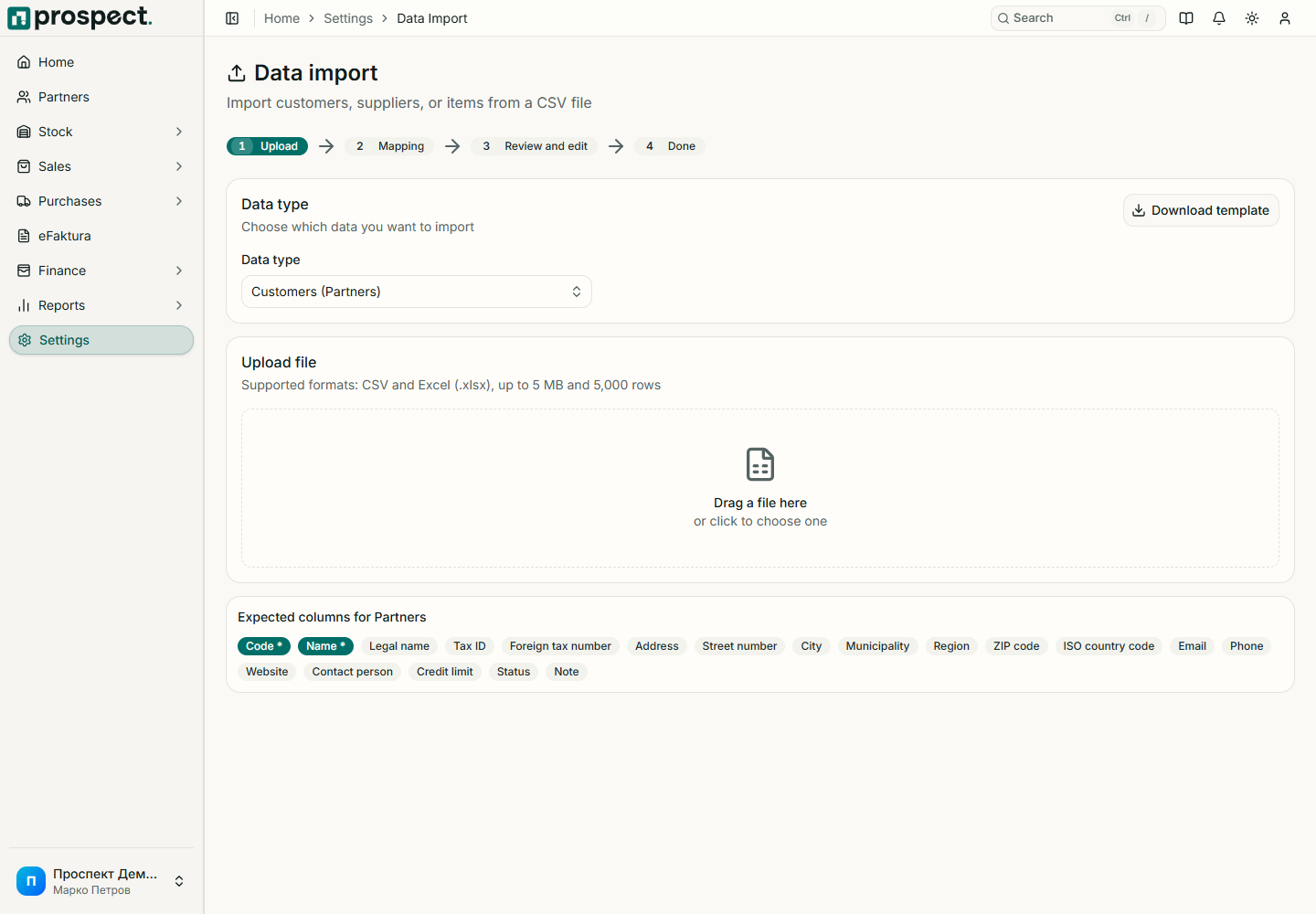
Owners and administrators access Settings → Import and Settings → Export. Use these tools only for supported resources; they are not a database backup or general-ledger integration.
Export current data first when updating many records, and retain the original file.
Prepare the supported file with exact required headers, codes, dates, decimals, and references.
Upload and review validation feedback before committing the import.
Correct errors in the source file instead of repeatedly importing uncertain variants.
After completion, compare counts and sample records in their normal module.
Moving from another system
When you switch to Prospect, bring over what is still open on your cutover date. Choose the cutover date first, usually the last day before you start issuing documents in Prospect, and import in this order so each step can find the records it refers to:
| Step | Import type | Required columns | Result |
|---|---|---|---|
| 1 | Customers (Partners) / Suppliers (Partners) | Code, name | Partners |
| 2 | Items | Code, name | Items |
| 3 | Opening stock | Item code, quantity, unit cost | One opening stock entry per item and warehouse, valued at the unit cost |
| 4 | Unpaid customer invoices | Partner code, document number, document date, outstanding amount | Open receivables that appear in aging, customer statements, and credit-limit checks |
| 5 | Unpaid supplier bills | Partner code, document number, document date, outstanding amount | Open payables that appear in supplier statements |
- Leave the warehouse empty to use the default warehouse, and the currency empty to use the default currency. Foreign-currency balances use the official exchange rate stored for the document date unless you enter one.
- Enter only the amount still outstanding. Prepayments and credit balances in the partner's favour are not supported by the import.
- Importing the same partner and document number again is reported as existing. Choose Update duplicates to correct it, which works only while no payment is matched to it. Opening stock is corrected the same way.
- Match later payments to opening balances in Finance → Reconciliation like any other open item. To withdraw a balance entered by mistake, use Reverse opening balance on it in Finance → Open Items.
- Dates in a locked fiscal year are rejected.
Opening balances are not part of the accounting export: your accountant already carries them from the previous system. Payments you match to them are exported as usual.
CSV exports respect company scope and the requested resource or report filters. Spreadsheet software may reinterpret codes, dates, leading zeroes, or decimals; inspect the saved CSV before reimport.
Never upload passwords, card data, private keys, or unrelated personal information. For balanced accounting transfer, use Accounting handoff.